नोट: डिजिटल साइन के द्वारा पे मेनेजर से बिल बनाने के लिए आपके कम्प्युटर या लैपटाप में WINDOW 10 और Internet Explorer Version 11 (IE-11) होना चाहिए। बिल डिजिटल साइन करते समय आपको केवल इंटरनेट एक्सप्लोरर पर ही कार्य करना हैं , अन्य ब्राउज़र से बिल साइन नहीं होंगे।
सर्वप्रथम DDO द्वारा बनाया गया DSC (E-PASS) MODEM को हमारे सिस्टम में Install करेंगे DSC को USB PORT में लगाकर दिये गए विडियो में देखकर Install करें। यह एक सामान्य प्रक्रिया है।
DOWNLOAD ACTIVEX (E-SIGN PDF) AND ACTIVEX INSTALL
E-SIGN PDF - यह सिस्टम में install होना आवश्यक हैं। E-SIGN PDF DOWNLOAD होने के बाद सिस्टम में Install करें।
DOWNLOAD ACTIVEX
Paymanager DSC Installation & ActiveX Setting
SOFTWARE FOR ACTIVEX SETTING
Paymanager DSC Installation & ActiveX Setting
Activex Setting करने के लिए आपको Internet Explorer में निम्न प्रकार से सेटिंग करनी है।
STEP-1
सर्वप्रथम इंटरनेट एक्सप्लोरर में Tools (click-1) करना हैं। तत्पश्चात Internet Options (click-2) करना है।
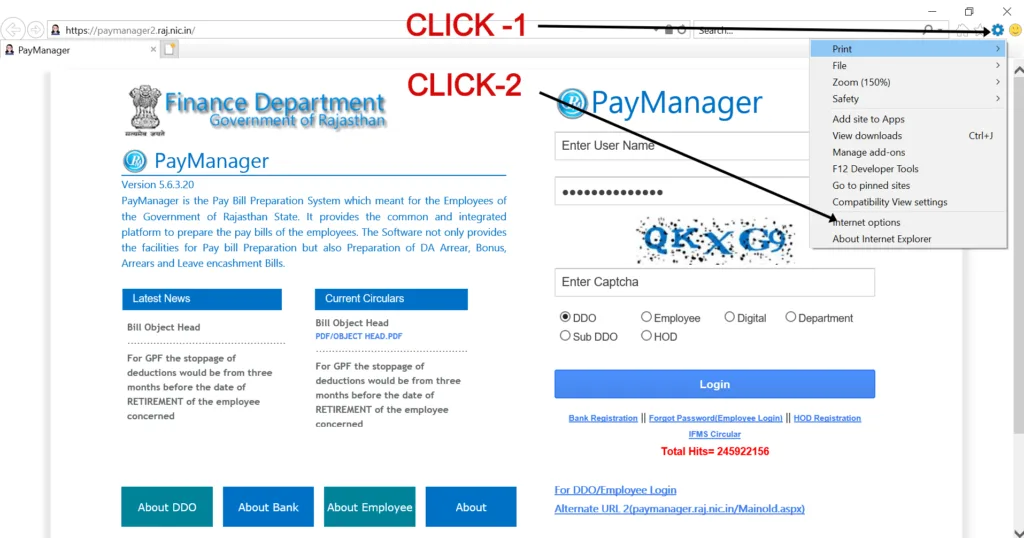
Paymanager DSC Installation & ActiveX Controls Setting
STEP-2
दिखाई गयी विंडो खुलने पर Security पर (Click-1) तत्पश्चात Custom Level (Click-2) करना हैं। Enable Protected Mode पर Tick हटाना है।
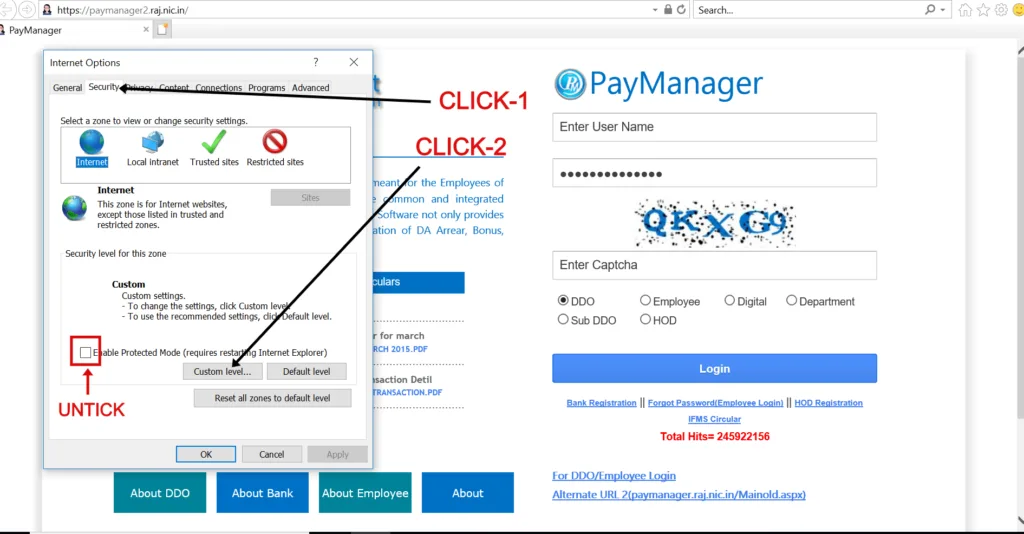
Paymanager ActiveX setting
STEP-3
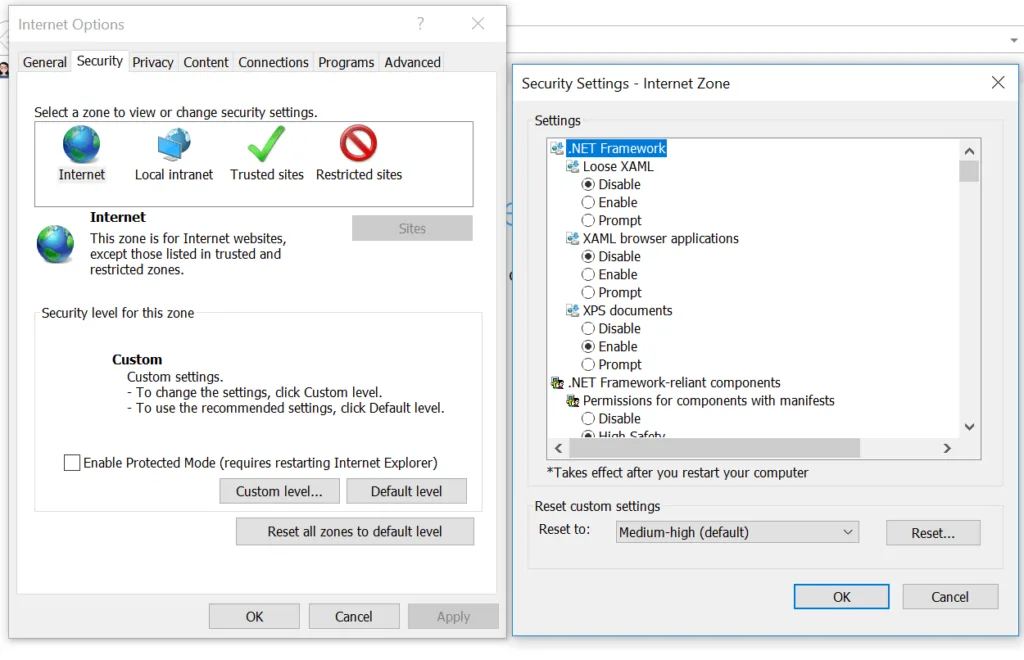
अब यह विंडो दिखाई देगी
STEP-4
नीचे दी गई सेटिंग Security में Internet Option पर क्लिक करके करनी हैं।
ActiveX Controls and plug-ins
नोट: उपरोक्त सेटिंग करने के बाद भी यदि कोई ERROR आता हैं तो Security में ही Trusted Sites पर क्लिक करके ActiveX Controls and plug-ins And Scripting में All Setting ENABLE कर दें।
Paymanager DSC Installation & ActiveX Setting
Steps:-
To run Lync Web App in Internet Explorer, you must enable ActiveX controls.
- Click Tools > Internet Options.
- Click the Security tab > Custom Level.
- Scroll down to ActiveX controls and plugins and click Enable for:
- Run ActiveX controls and plugins
- Script ActiveX controls marked safe for scripting
- Click OK to close the dialog boxes, and then restart Internet Explorer.
- For Internet Explorer 9 and later, you must also disable ActiveX Filtering, if turned on.
❓ अक्सर पूछे जाने वाले सवाल — FAQ
Q. ActiveX download for Windows 10 कहाँ से करूँ?
ESignPDF ही ActiveX है — Windows 10 और Windows 11 दोनों में काम करता है।
Q. ActiveX control update कैसे करूँ?
पुराने ESignPDF को Uninstall करके नया डाउनलोड और Install करें।
Q. DSC Registration के लिए कौन सा ब्राउज़र चाहिए?
केवल Internet Explorer या Microsoft Edge का IE Mode।
Q. .NET Framework 3.5 error कैसे ठीक करूँ?
Step 5 में पूरा तरीका दिया गया है — Microsoft site से dotNetFx35setup download करें।
Q. ActiveX Setting के बाद भी Sign नहीं हो रहा?
Step 7 में Trusted Sites में Paymanager जोड़ें और ब्राउज़र Restart करें।
Q. क्या यह Windows 11 में काम करेगा?
हाँ, Windows 11 में भी यही process है — Edge IE Mode use करें।