ActiveX Setting For Digital Sign
Super Administrator
11 May 2026
4:55 AM
Complete Guide
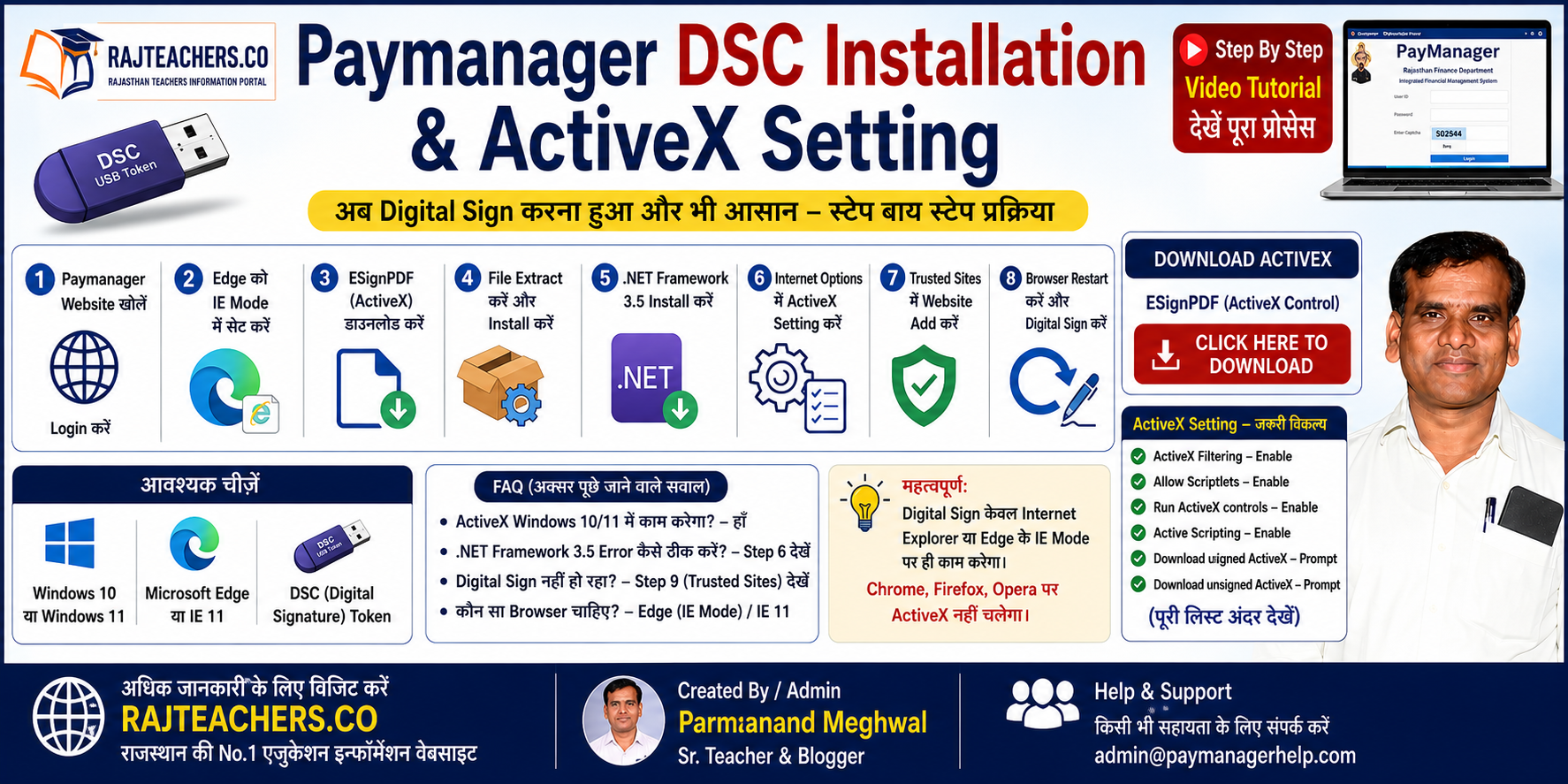
Paymanager DSC Installation
& ActiveX Setting
Digital Signature Setup — Windows 10 & Windows 11
✓ ActiveX Setting शुरू करने से पहले — आवश्यक चीज़ें
🖥️
Operating System
Windows 10 या Windows 11
🌐
Browser
Microsoft Edge या IE 11
🔑
DSC Device
Digital Signature USB मोडेम
⚠️ महत्वपूर्ण: डिजिटल साइन केवल Internet Explorer या Edge के IE Mode पर काम करेगा। Chrome, Firefox, Opera पर ActiveX Control नहीं चलेगा।
Step-by-Step Setup Guide
1 Paymanager की वेबसाइट खोलें
- Microsoft Edge ब्राउज़र खोलें
- PayManager पर Login करें
- URL:
https://paymanager.rajasthan.gov.in
2 Edge को IE Mode में सेट करें
- Edge के ऊपर दाहिनी तरफ तीन बिंदु (...) पर क्लिक करें
- Settings पर क्लिक करें
- बाईं तरफ Default browser पर क्लिक करें
- "Allow sites to be reloaded in Internet Explorer mode" — Allow करें
- "Internet Explorer mode pages" में Add a page पर क्लिक करें
- बॉक्स में Paymanager Website लिंक डालें और Add करें
- ब्राउज़र Restart करें — IE Mode ऑन हो जाएगा
3 ESignPDF (ActiveX) डाउनलोड करें
4 ESignPDF को Extract (अनज़िप) करें
- ESignPDF फ़ाइल पर Right Click करें
- मेनू में से Extract Here पर क्लिक करें
- Extract होने के बाद ESignPDF फोल्डर बन जाएगा
- फोल्डर पर डबल क्लिक करें — अंदर ये दो फाइलें दिखेंगी
| फ़ाइल का नाम |
टाइप |
साइज़ |
| ESignPDF |
Setup Information (.inf) |
1 KB |
| ESignPDF |
Windows Installer Package (.msi) |
1,613 KB |
.msi फ़ाइल पर डबल क्लिक करके Install करें।
5 .NET Framework 3.5 की समस्या — और उसका हल
Error Message: "This setup requires the .NET Framework version 3.5."
अगर यह Error नहीं आया तो ESignPDF सीधे Install हो जाएगा।
यह Error आए तब: Microsoft site से dotNetFx35setup download करें → install करें → फिर ESignPDF install करें।
6
ActiveX Setting करें — Internet Options में
यह सबसे जरूरी Step है — यह नहीं किया तो Digital Sign काम नहीं करेगा
- Internet Explorer या Edge (IE Mode) खोलें
- ऊपर गियर आइकन ⚙️ (Tools) → Internet Options
- Security Tab → Internet Zone → Custom level
🔷 ActiveX Controls and plug-ins
| Setting का नाम |
क्या करें |
| Allow ActiveX filtering |
Enable |
| Allow previously unused ActiveX controls to run without prompt |
Enable |
| Allow Scriptlets |
Enable |
| Automatic prompting for ActiveX controls |
Enable |
| Binary and script behaviors |
Enable |
| Download signed ActiveX controls |
Prompt |
| Download unsigned ActiveX controls |
Prompt |
| Initialize and script ActiveX controls not marked as safe |
Prompt |
| Run ActiveX controls and plug-ins |
Enable |
| Script ActiveX controls marked safe for scripting |
Enable |
🔷 Scripting
| Setting का नाम |
क्या करें |
| Active scripting |
Enable |
| Allow Programmatic clipboard access |
Enable |
| Allow status bar updates via script |
Enable |
| Allow websites to prompt for information using scripted windows |
Enable |
7 Trusted Sites में Paymanager जोड़ें
- Internet Options → Security → Trusted Sites → Sites
- बॉक्स में टाइप करें:
https://paymanager.rajasthan.gov.in
- Add → Close
- Trusted Sites की Custom Level में भी ActiveX Enable करें
- OK → Apply → OK
8 Browser Restart करें और Digital Sign करें
- सभी ब्राउज़र बंद कर दें
- DSC USB मोडेम USB Port में लगाएं
- Edge (IE Mode) फिर से खोलें
- Paymanager पर Login करें
- बिल पर Digital Sign का option चुनें
✅ Digital Sign हो जाएगा!
❓ अक्सर पूछे जाने वाले सवाल — FAQ
Q. ActiveX download for Windows 10 कहाँ से करूँ?
ESignPDF ही ActiveX है — Windows 10 और Windows 11 दोनों में काम करता है।
Q. ActiveX control update कैसे करूँ?
पुराने ESignPDF को Uninstall करके नया डाउनलोड और Install करें।
Q. DSC Registration के लिए कौन सा ब्राउज़र चाहिए?
केवल Internet Explorer या Microsoft Edge का IE Mode।
Q. .NET Framework 3.5 error कैसे ठीक करूँ?
Step 5 में पूरा तरीका दिया गया है — Microsoft site से dotNetFx35setup download करें।
Q. ActiveX Setting के बाद भी Sign नहीं हो रहा?
Step 7 में Trusted Sites में Paymanager जोड़ें और ब्राउज़र Restart करें।
Q. क्या यह Windows 11 में काम करेगा?
हाँ, Windows 11 में भी यही process है — Edge IE Mode use करें।